
Download the guide
- iPhone: PDF to print or keep · Image to save in your photos
- Android: PDF to print or keep · Image to save in your photos
iPhone
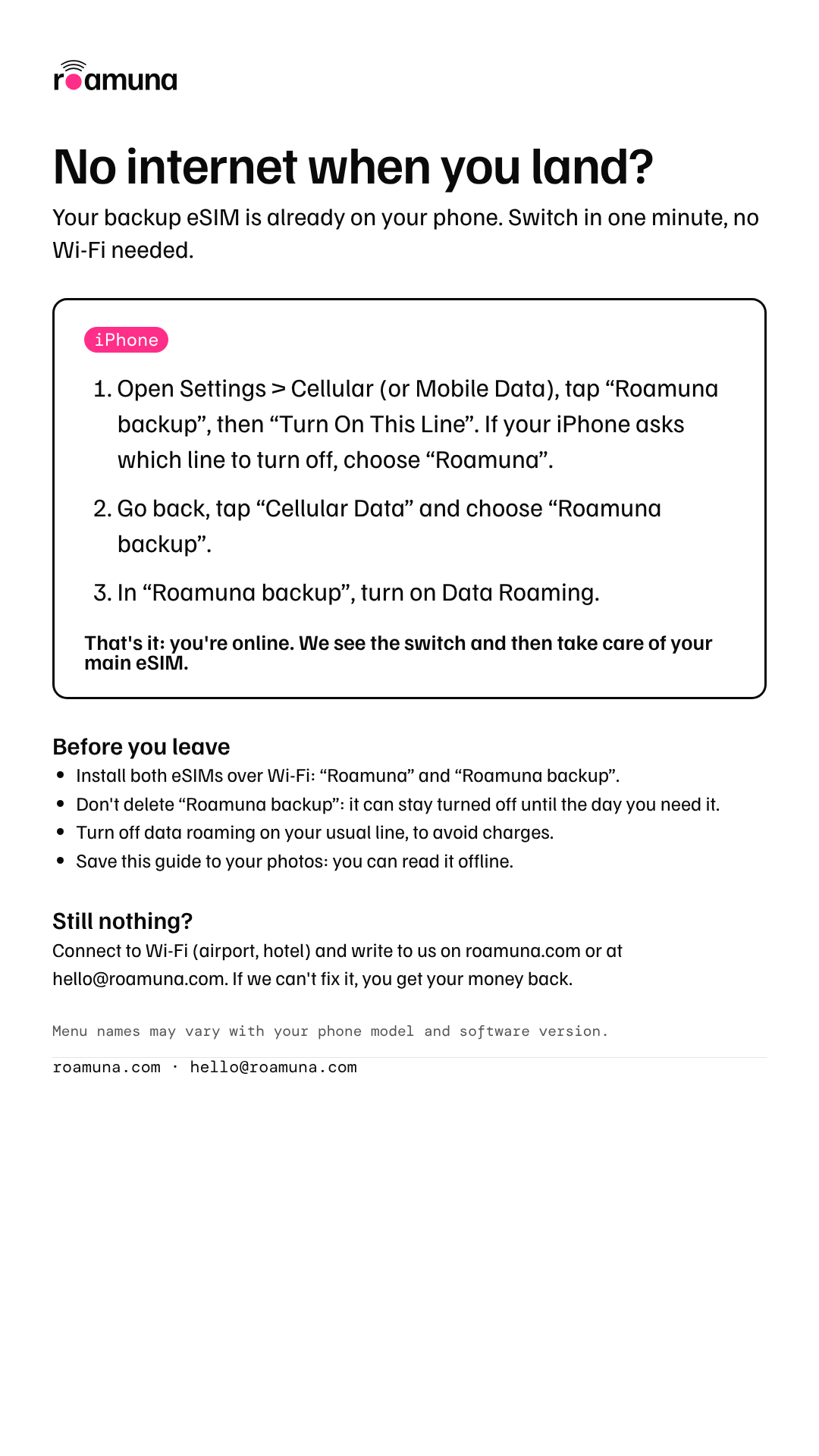
- Open Settings > Cellular (or Mobile Data), tap “Roamuna backup”, then “Turn On This Line”. If your iPhone asks which line to turn off, choose “Roamuna”.
- Go back, tap “Cellular Data” and choose “Roamuna backup”.
- In “Roamuna backup”, turn on Data Roaming.
Android
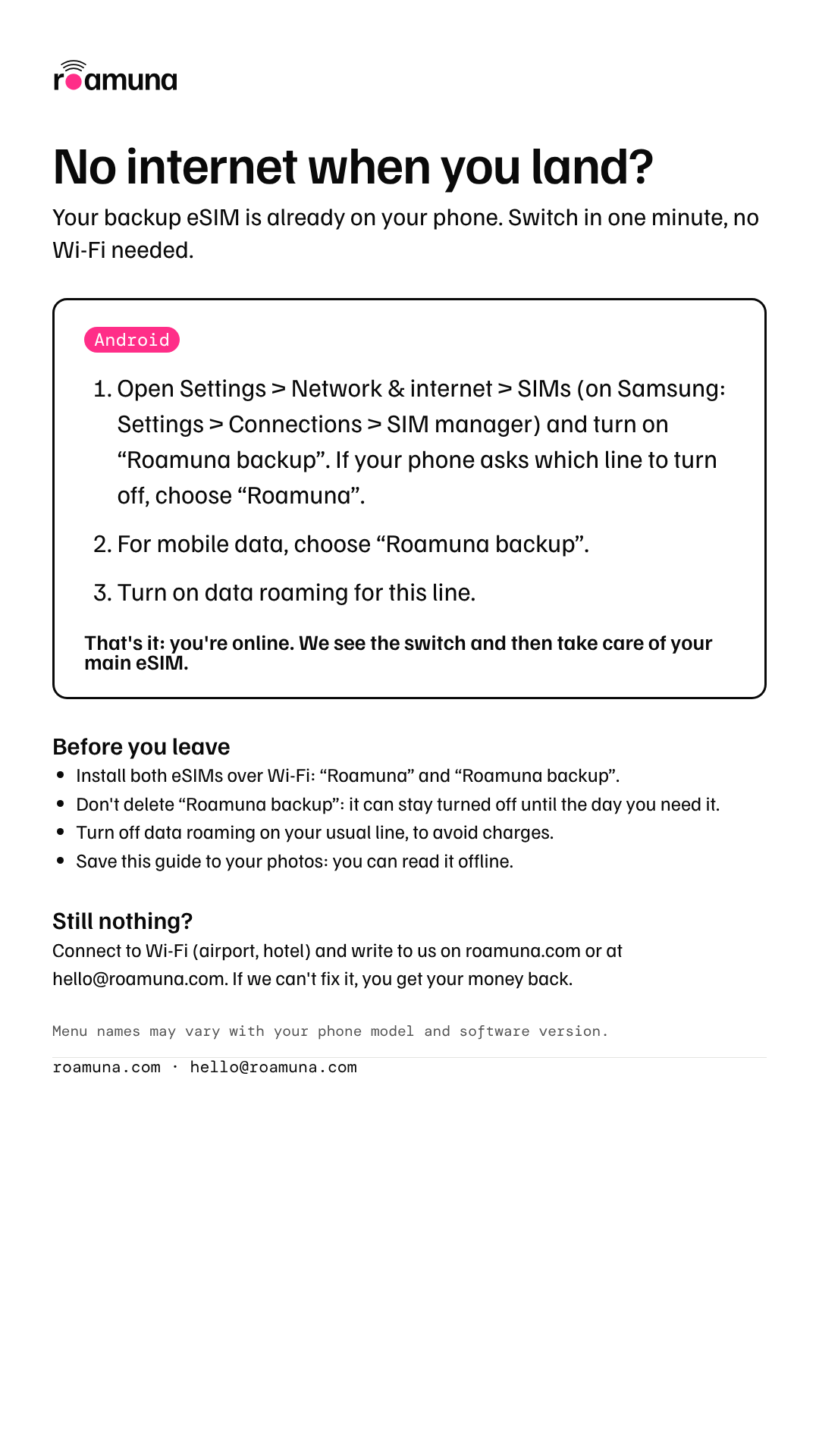
- Open Settings > Network & internet > SIMs (on Samsung: Settings > Connections > SIM manager) and turn on “Roamuna backup”. If your phone asks which line to turn off, choose “Roamuna”.
- For mobile data, choose “Roamuna backup”.
- Turn on data roaming for this line.
That's it: you're online. We see the switch and then take care of your main eSIM.
Before you leave
- Install both eSIMs over Wi-Fi: “Roamuna” and “Roamuna backup”.
- Don't delete “Roamuna backup”: it can stay turned off until the day you need it.
- Turn off data roaming on your usual line, to avoid charges.
- Save this guide to your photos: you can read it offline.
Still nothing?
Connect to Wi-Fi (airport, hotel) and write to us on roamuna.com or at hello@roamuna.com. If we can't fix it, you get your money back.
Menu names may vary with your phone model and software version.